
1 Mecmesin Touchscreen Controller
 |
431-967-01 September 2019 |
2 Scope of this Document
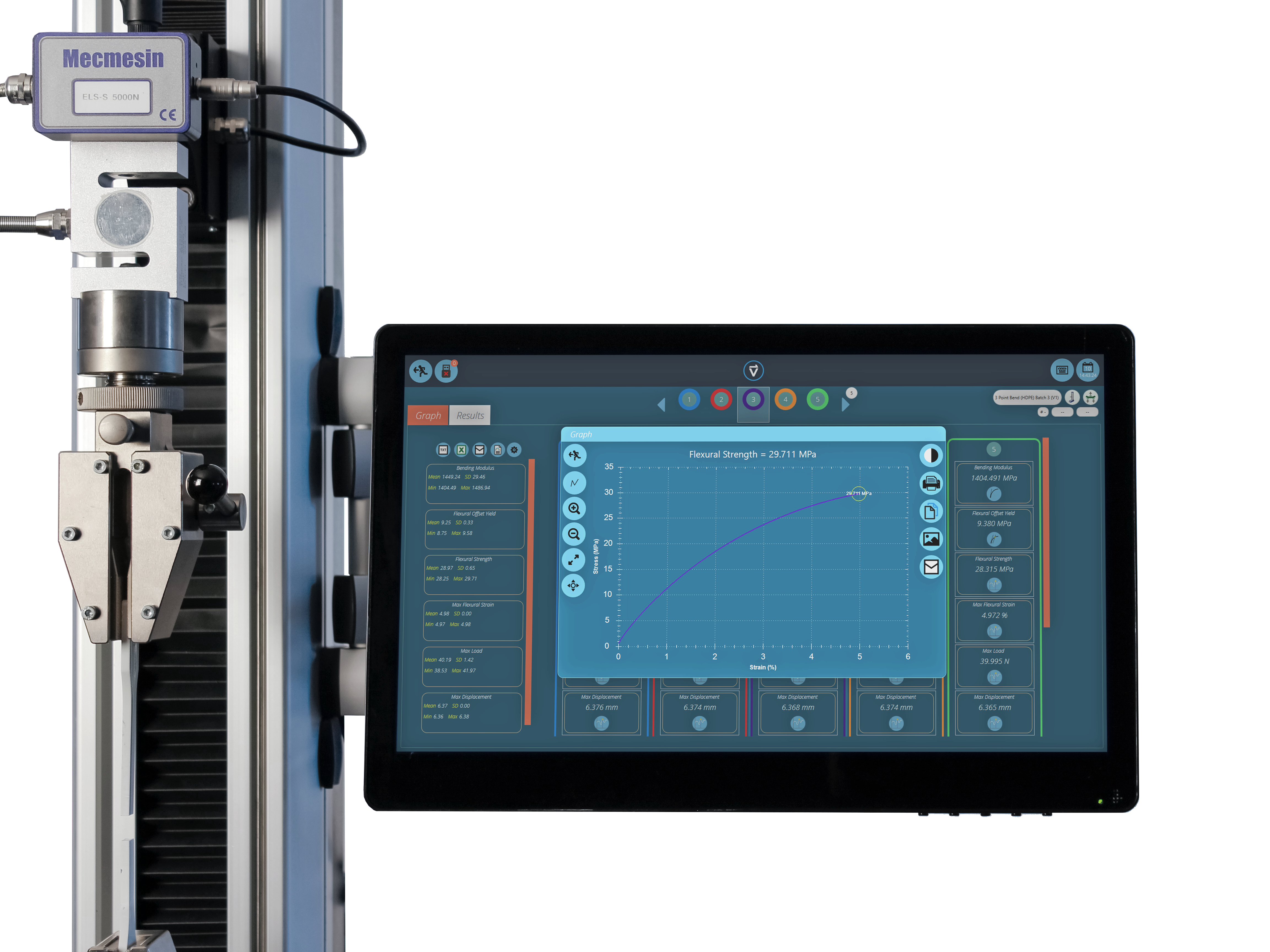
The Mecmesin Touchscreen Controller provides full PC capability to run VectorPro MT software while being conveniently mounted directly to the test stand column.
This allows less IT installation than a typical computer setup, resulting in a more efficient, self-contained software-controlled test system, occupying minimum bench-top space.
This document covers the initial setup and operation of the Touchscreen Controller, as well as essential usage guidance. For further guidance relating to individual test stands or software, please refer to the corresponding user manual.
Alternatively, electronic copies are available at – https://help.mecmesin.com
2019 © Mecmesin Ltd, supplied with Mecmesin Touchscreen Controllers and not for redistribution
Part no. 431-967-01
3 User Manual Guidance
Throughout this manual, the icons shown below are used to identify important health and safety information as well as additional installation/operation guidance. Do not proceed until each individual message is read and thoroughly understood.
3.1 Warning
The warning icon highlights a situation or condition that may lead to possible personal injury or damage to the associated equipment.
3.2 Caution
The caution icon indicates a situation or condition that could cause the equipment to malfunction leading to possible damage.
3.3 Information
The information icon indicates additional or supplementary information about the action, activity or application.
- 1 Mecmesin Touchscreen Controller
- 2 Scope of this Document
- 3 User Manual Guidance
- 4 Touchscreen Safety Overview
- 5 System Diagrams
- 6 Unpacking and Parts Supplied
- 7 Touchscreen Controller Installation
- 7.1 Prerequisites
- 7.2 Installation Guide
- 7.2.1 Step 1 - Unpacking the Touchscreen Controller
- 7.2.2 Step 2 - Remove the Controller from the Mounting Arm
- 7.2.3 Step 3 - Preparing to Mount the Controller Arm
- 7.2.4 Step 4 - Mounting the Controller Arm
- 7.2.5 Step 5 - Fitting the Touchscreen Controller
- 7.2.6 Step 6 - Check the Height of the Controller Arm
- 7.2.7 Step 7 - Final Adjustment
- 8 Touchscreen Controller Connections
- 9 Touchscreen Controller Operation - Windows® 10
- 10 Touchscreen Controller Operation - VectorPro™
- 11 Specification
- 12 Document of Conformity
- 13 Additional
4 Touchscreen Safety Overview
The Touchscreen Controller is designed to be used in a dry, clean and tidy environment and should be secured to the test stand using the supplied fixings.
The equipment must be within easy reach; improper mounting of the Touchscreen Controller can lead to injury or damage to the equipment. This may occur instantly, or over time, a Touchscreen Controller that is placed too high or low can lead to repetitive strain injuries.
4.1 Training
Before using either the test stand or Touchscreen Controller, it is essential that each person operating the equipment is fully trained in the safe use of motorised testing machines and the controller functionality. Training can be arranged by contacting Mecmesin Ltd or an authorised distributor.
4.2 Recommended Operating Position
Mecmesin recommends that the test stand and controller are placed so that both the test stand front panel and the Touchscreen Controller are clearly visible and can be reached easily. For single column test stands, this will typically require the base of the machine to be approximately at waist height, with the controller just below eye-level.
5 System Diagrams
5.1 Touchscreen Monitor
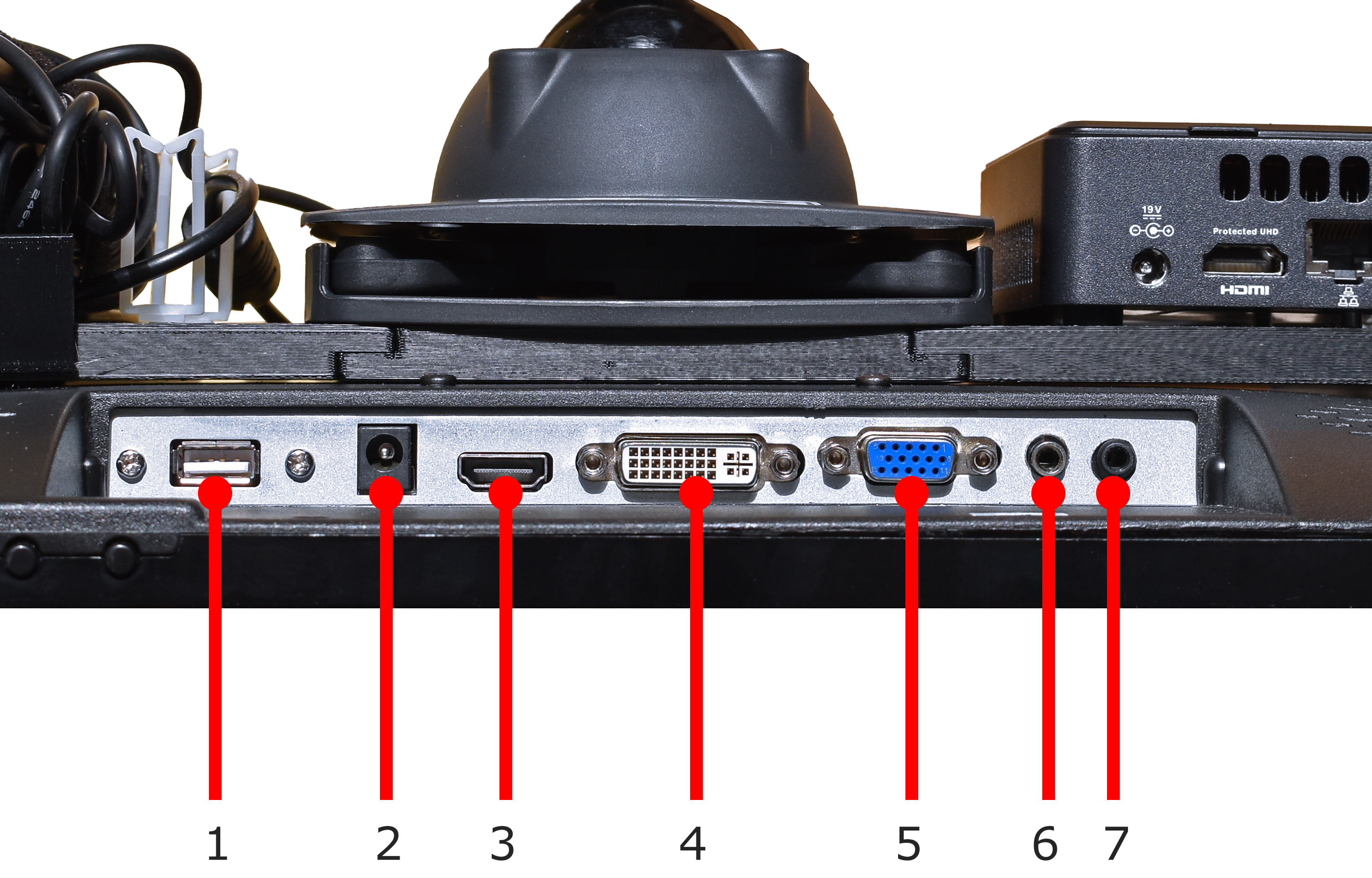
| 1 | Touchscreen to PC USB Port |
|---|---|
| 2 | DC Power Input |
| 3 | HDMI Input |
| 4 | DVI-D Input |
| 5 | VGA Input |
| 6 | 3.5 mm Audio Jack Input |
| 7 | 3.5 mm Audio Jack Output |
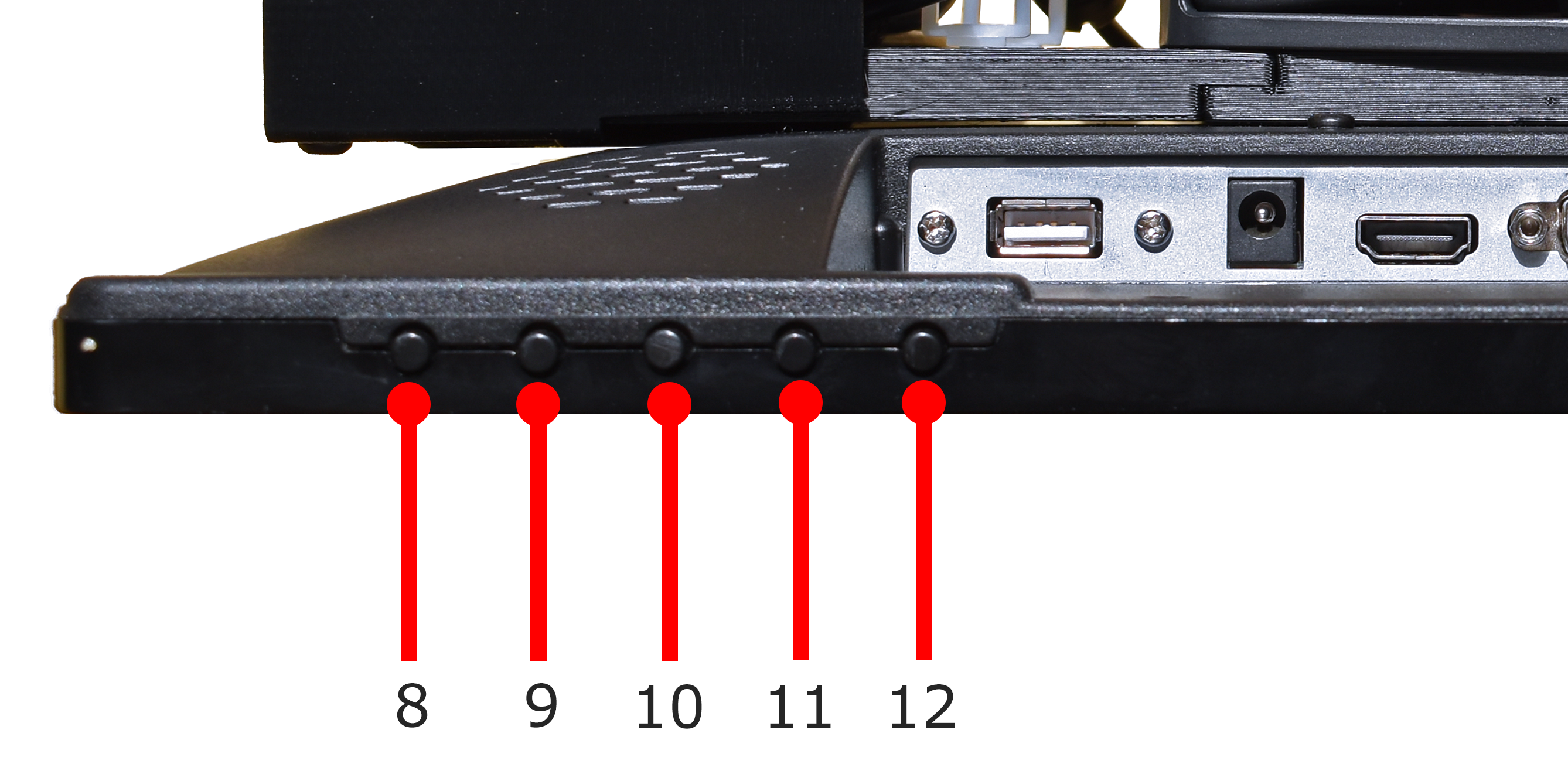
| 8 | Touchscreen Power Button |
| 9 | Touchscreen Menu Button |
| 10 | Volume/Menu Up Button |
| 11 | Volume/Menu Down Button |
| 12 | Menu Exit Button |
5.2 Computer
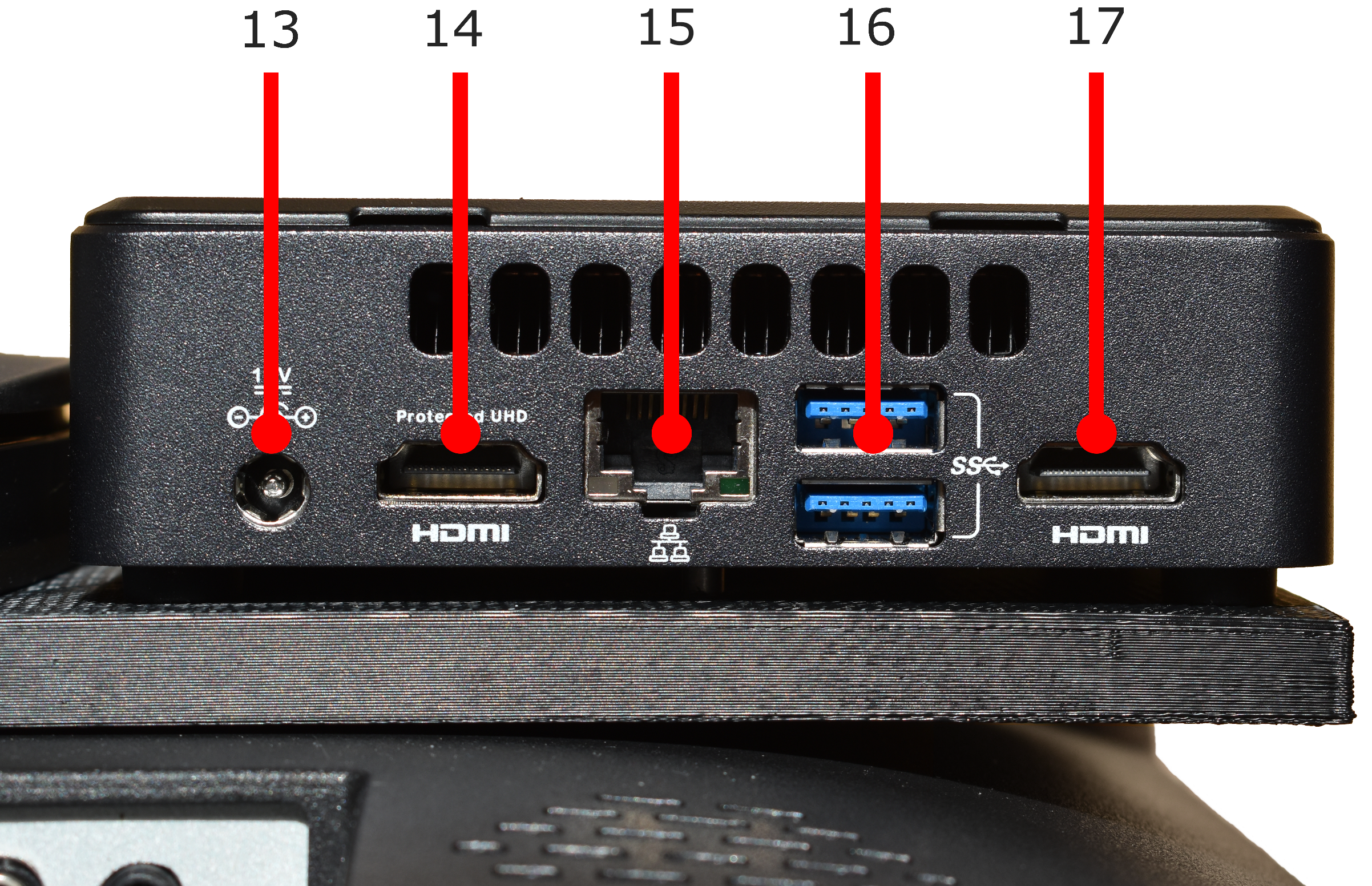
| 13 | DC Power Input |
|---|---|
| 14 | HDMI Output |
| 15 | Ethernet Port |
| 16 | USB 3.0 Ports |
| 17 | HDMI Output |
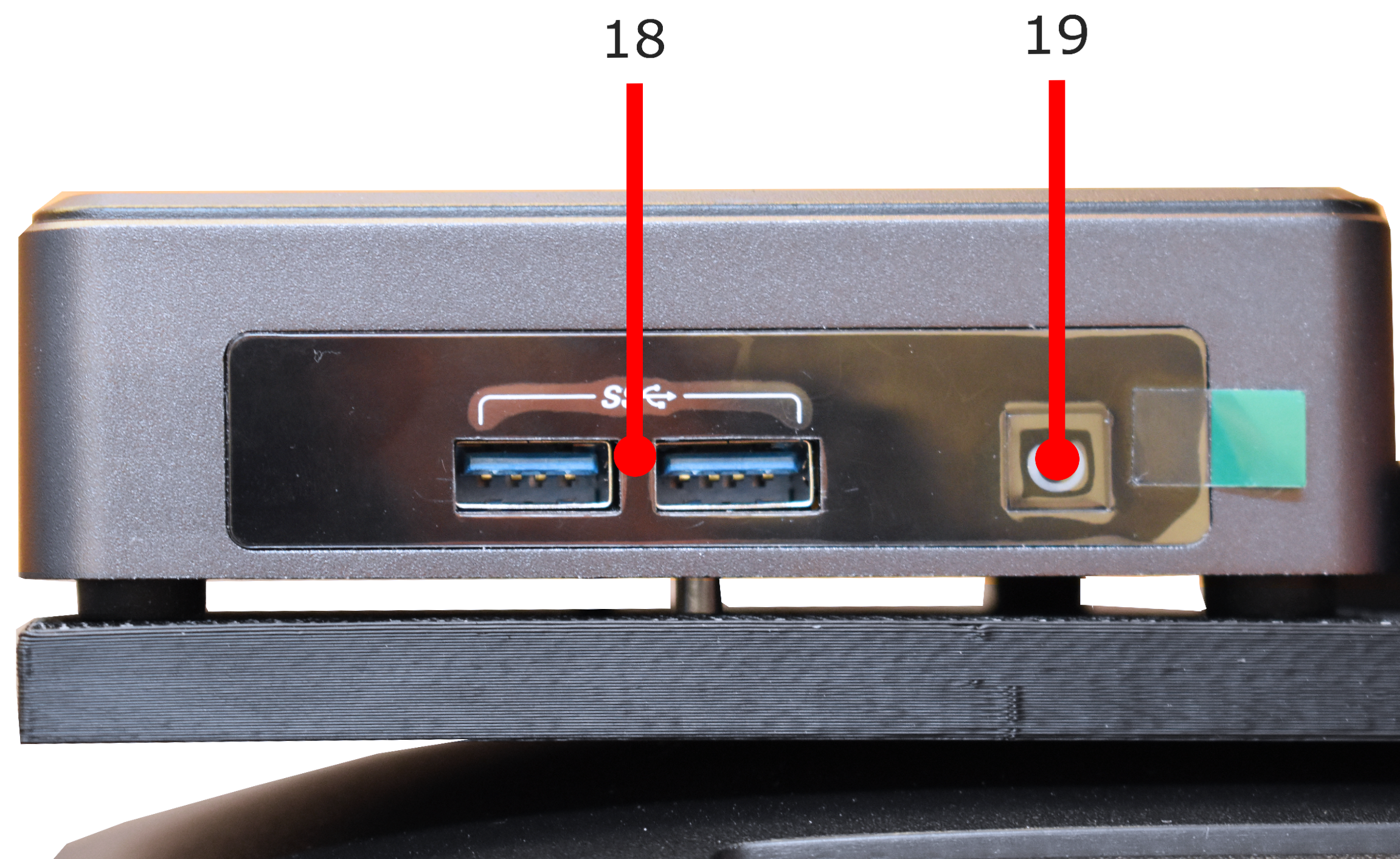
| 18 | USB 3.0 Ports |
|---|---|
| 19 | Computer Power Button |
Connectivity
Mecmesin Touchscreen Controller connection interfaces:
- 4 x USB 3.0 Ports - Two ports are reserved, one for the touchscreen monitor and one for the test stand communications cable.
- 2 x HDMI Ports - One port is reserved for the touchscreen monitor.
- RJ-45 Ethernet Port - For LAN and network connections.
- Dual-Band Wireless - Wireless connections are disabled by default. Please contact your local Mecmesin agent for further information if this is required.
6 Unpacking and Parts Supplied
6.1 Inspection and Unpacking
Before installing or operating the Mecmesin Touchscreen Controller, please ensure that no visible damage has occurred during the shipping of the device.
6.2 Packaging
We strongly recommend that all packaging is retained for the Touchscreen Controller as this can be re-used if the device needs to temporarily removed or shipped between sites.
6.3 Items Supplied
Please see the table below for the list of the parts supplied with the Touchscreen Controller. Please note the exact parts supplied may differ depending on your test stand and location.
| Item | Quantity |
|---|---|
| Touchscreen Controller Assembly | 1 |
| Touchscreen Display Mains Power Supply | 1 |
| Touchscreen Computer Mains Power Supply | 1 |
| HDMI Cable 0.25m | 1 |
| USB 2.0 A to A 0.5m | 1 |
| Touchscreen Protector | 1 |
| Velcro Cable Strap | 1 |
| M6 T Nut | 2 |
| Touchscreen Mounting Arm | 1 |
7 Touchscreen Controller Installation
Before installing the Touchscreen Controller, it is important to read the next section in full. Failure to do so could lead to injury or damage to the test equipment.
7.1 Prerequisites
Before installing the Touchscreen Controller, ensure you are working in a suitable area. It is important that there is a clear, stable work surface to place parts during the installation and that the associated test stand is suitably secured. All potential risks should be assessed before starting the installation phase.
7.2 Installation Guide
Please note, some information within the installation guide applies to either single or twin column test stands only. Instructions specific to one test stand type only will be indicated by one of the following headings:
- Single Column Systems - Applies to OmniTest 5.0 kN and 7.5 kN test stands only.
- Twin Column Systems - Applies to Omnitest 10 kN, 25 kN and 50 kN test stands only.
7.2.1 Step 1 - Unpacking the Touchscreen Controller
Unpack the Touchscreen Controller from the supplied package. Ensure that there is no damage to any of the components and that all of the items listed Items supplied are present. It is recommended to retain the packaging for future usage.
7.2.2 Step 2 - Remove the Controller from the Mounting Arm
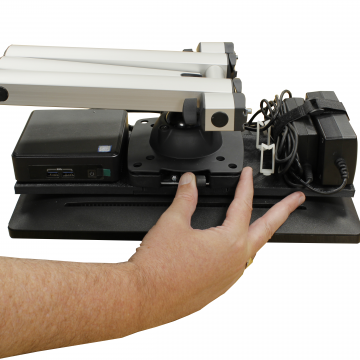
The Touchscreen Controller should be removed from the mounting arm before securing the device to the test stand. The Touchscreen Controller assembly can be detached from the mounting arm by pressing the quick release fixing to the right, as shown in the image above.
7.2.3 Step 3 - Preparing to Mount the Controller Arm
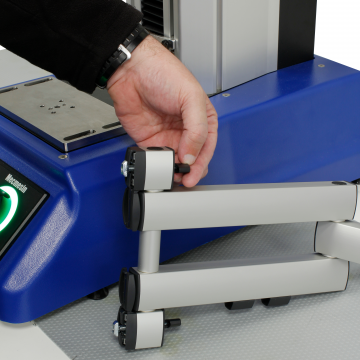
Fit the two supplied T-Slot nuts to the arm bracket, as shown in the image above. Ensure that the nuts are only loosely assembled as this will aid fitting the arm to the test stand. Before securing the arm, identify the height at which it will be mounted to the test stand, correct mounting should enable the controller to be easily accessed with clear visibility of the display.
7.2.4 Step 4 - Mounting the Controller Arm
7.2.4.1 Single Column Systems
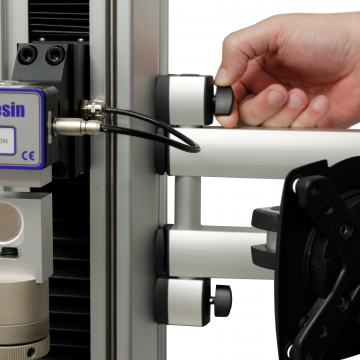
To mount the arm to the test stand, slide the two T-Nuts into the profile located on the side of the single column OmniTest system. Use the two handles located on the Touchscreen Controller arm to secure the assembly to the profile, as shown above
7.2.4.2 Twin Column Systems
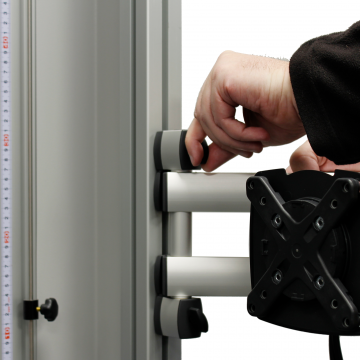
To mount the arm to the test stand, slide the two T-Nuts into the profile located on the side of the OmniTest guarding. Use the two handles located on the Touchscreen Controller arm to secure the assembly to the profile, as shown in the image above.
7.2.5 Step 5 - Fitting the Touchscreen Controller
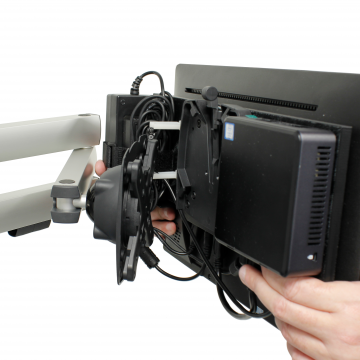
Once the arm is secured to the test stand, reattach the touchscreen to the arm bracket. To mount the controller to the arm carefully slide and press the Touchscreen Controller assembly down into the mounting bracket as shown in the image above.
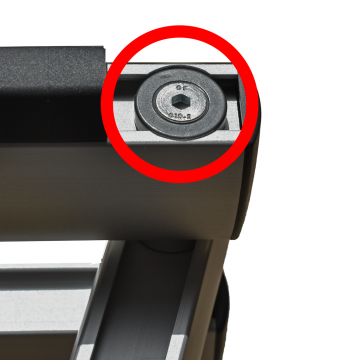
To secure the Touchscreen Controller tighten the screw shown in the image below.
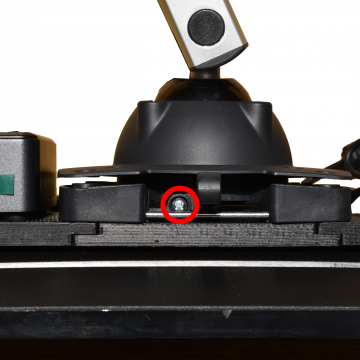
Tightening the screw highlighted above locks-off the quick release system, securing the controller to the mounting arm.
7.2.6 Step 6 - Check the Height of the Controller Arm
7.2.6.1 Single Column Systems
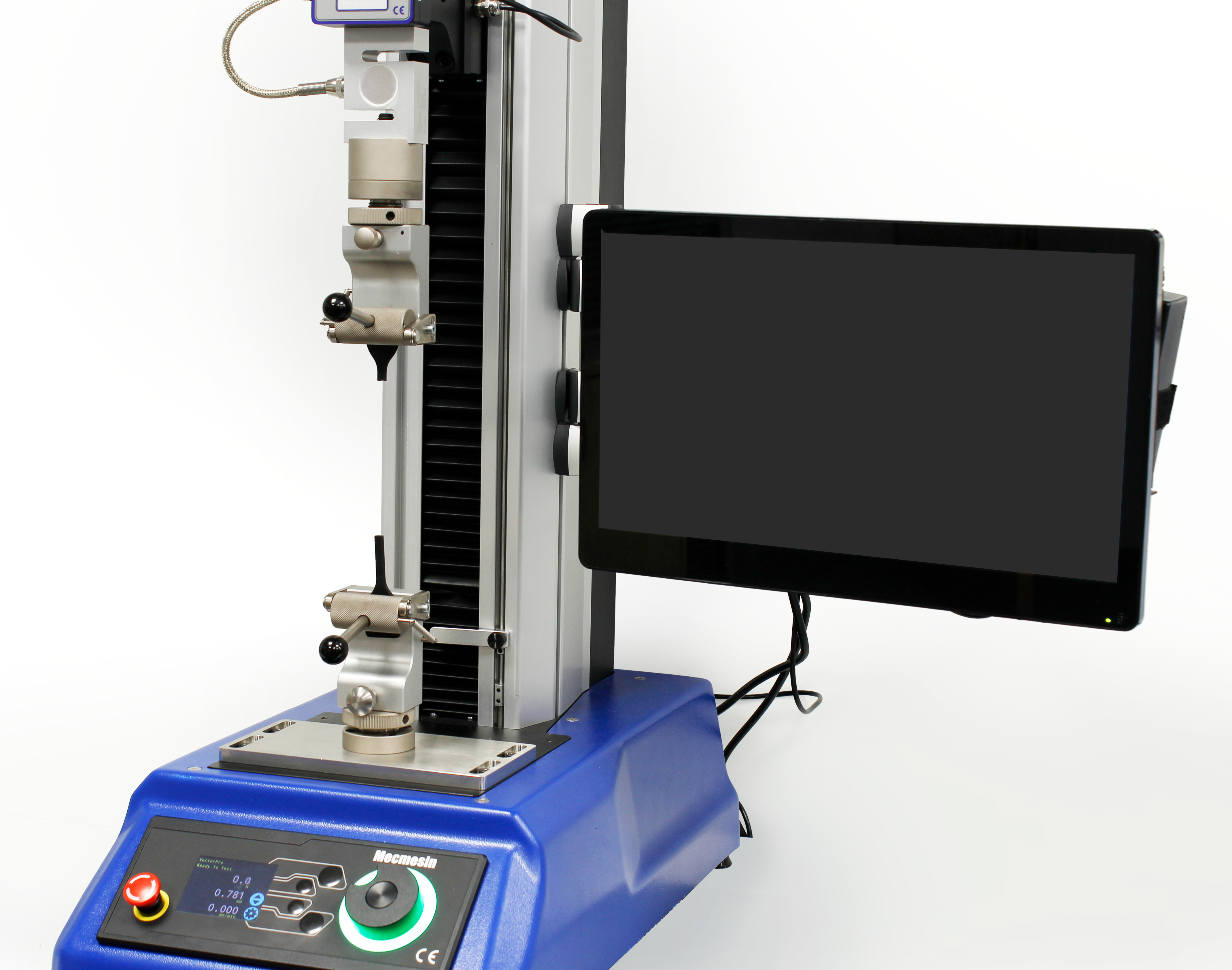
Before continuing check that the position of the Touchscreen Controller is correct. If the height of the arm needs adjusting remove the Touchscreen Controller and loosen the fixing handles that secure the T-Nuts within the test stand profile to enable the vertical position to be modified. Once you are happy with the height, continue to the next step.
7.2.6.2 Twin Column Systems
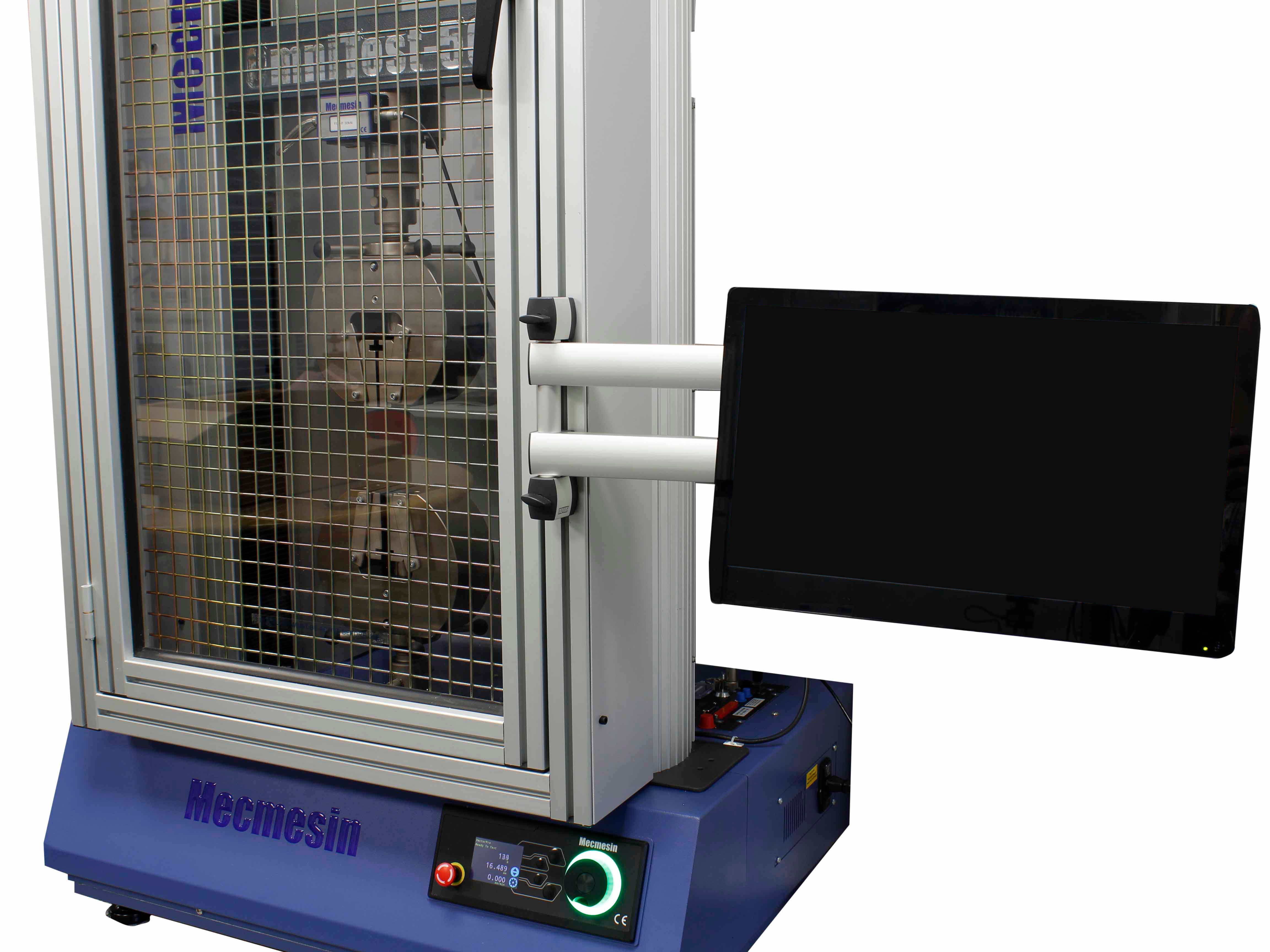
Before continuing check that the position of the Touchscreen Controller is correct. If the height of the arm needs adjusting remove the Touchscreen Controller and loosen the fixing handles that secure the T-Nuts within the test stand profile to enable the vertical position to be modified. Once you are happy with the height, continue to the next step.
7.2.7 Step 7 - Final Adjustment
The Touchscreen Controller arm allows both the position and angle of the controller to be adjusted through movement provided by the arm joints. Please note these joints can be tightening using the fixing located on the underside of each joint, as shown in the image above. If you are unable to adjust the position of the arm loosen the corresponding fixing using a Hex key as required.
8 Touchscreen Controller Connections
Before using the Touchscreen Controller, it will need to be connected to both a suitable mains supply and the associated test stand.
8.1 Touchscreen Controller connections
The controllers PC and touchscreen display connect using the supplied HDMI and USB cables, this enables video, audio and touchscreen input to be passed between the two devices. The cables connect as per the image below.
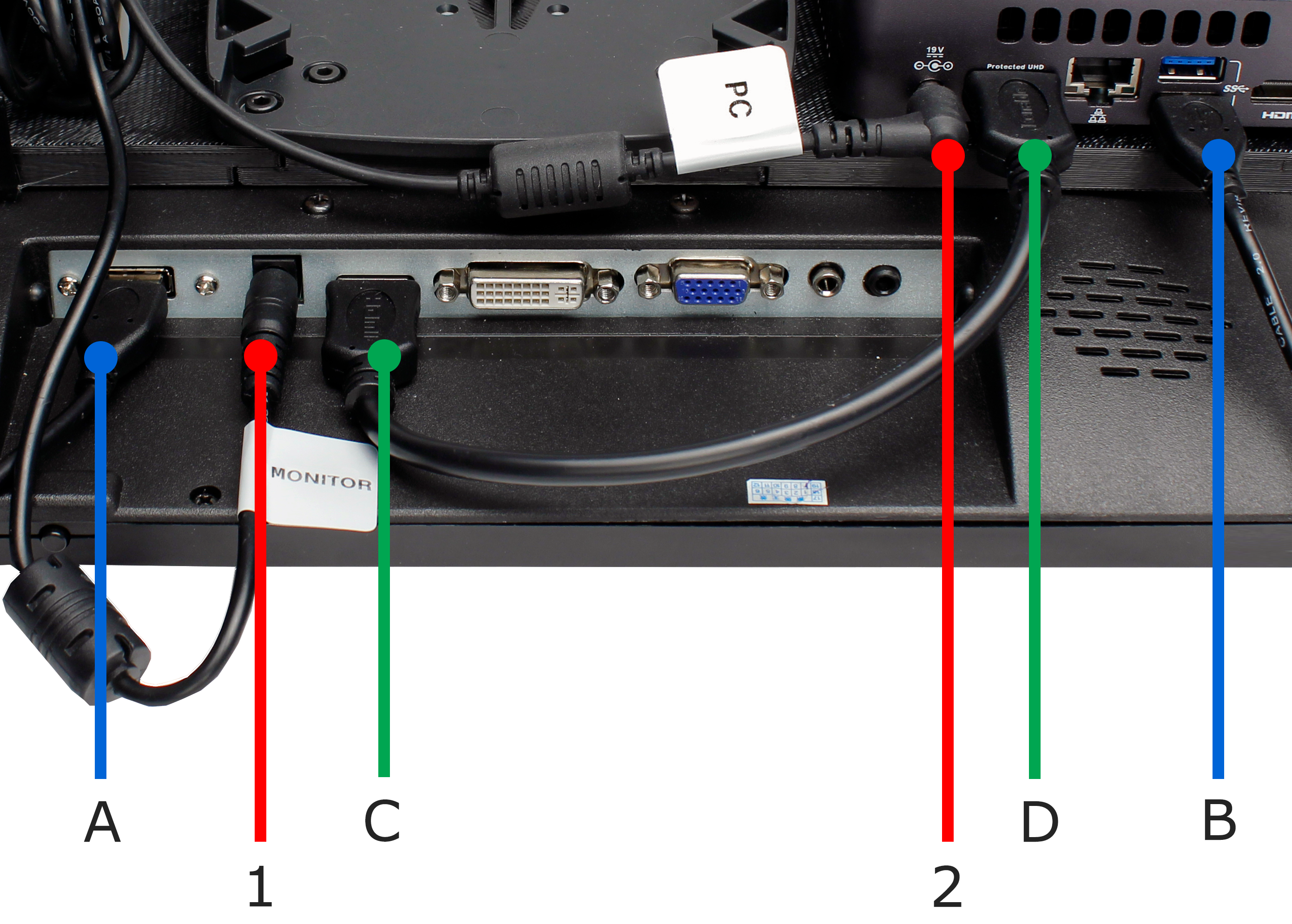
The communication connections, as indicated by the image above, are as followed:
- Connection A to B: USB cable for touchscreen input communications.
- Connection C to D: HDMI cable for video and audio communications.
The power connections, as indicated by the image above, are as followed:
- Connection 1: Monitor power cable. This cable is indicated by the attached 'Monitor' label.
- Connection 2: Touchscreen PC power cable. This cable is indicated by the attached 'PC' label.
8.2 Connecting the Test Stand
OmniTest systems connect to the Touchscreen Controller using a single USB A to B communication cable. This cable can connect to any of the unused USB ports on the Touchscreen Controller computer unit. The USB B end of the communication cable should be plugged into the test stand communication port.
8.3 Securing the Touchscreen Controller Cables
The cables running to both the OmniTest system and the mains power supply should be secured to the Touchscreen Controller arm. This helps to reduce the chances of the cables contacting with the test stand or operator.
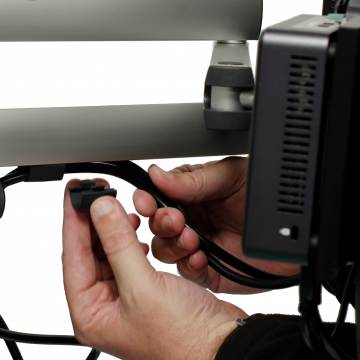
To secure the cables remove the plastic retention clips located on the bottom of the lower arm by 'pinching' the clips inwards. Thread the cables through the clips before reattaching them to the lower arm, as shown in the image above.
8.3.1 Additional connections
If connecting any additional cables, such as an Ethernet or USB lead, to the controller computer ensure these are suitably secured and away from the test stand crosshead.
9 Touchscreen Controller Operation - Windows® 10
Mecmesin Touchscreen Controllers come with Windows® 10 and VectorPro pre-installed allowing for minimal setup time. For the exact details relating to the Touchscreen Controller operating system, please see the device specification.
9.1 Logon
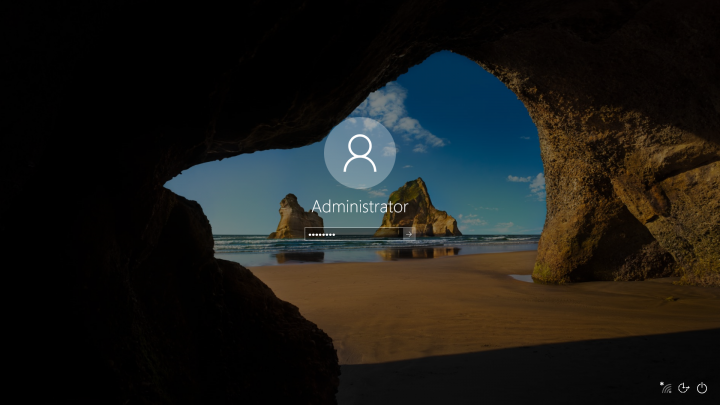
Mecmesin Touchscreen Controller password protected by default, the required logon details are as followed:
- User Name: Administrator
- Password: password
The user name, 'Administrator' will be entered automatically, enter the password using either the touchscreen keyboard or a compatible USB keyboard. Then press either 'Enter' or click the arrow to the right of the password field to continue.
9.2 Changing the Password
9.2.1 Step 1 - Open the 'Change your password' Dialogue within Windows® 10
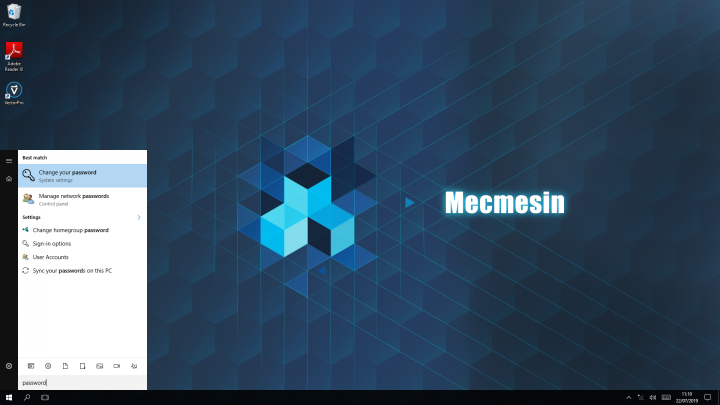
To change the password of the default 'Administrator' account, open the 'Change your Password' dialogue within Windows® 10.
If using touchscreen input, click the 'Search' icon located on the bottom left of the taskbar, then type 'password' using the on-screen keyboard. From the Start menu search results, select the option called 'Change your Password', as displayed in the image above.
If using an attached USB keyboard, click the 'Start' button on the keyboard and type 'password', from the Start menu search results, select the option called 'Change your Password', as displayed in the image above.
9.2.2 Step 2 - Enter the Current Password
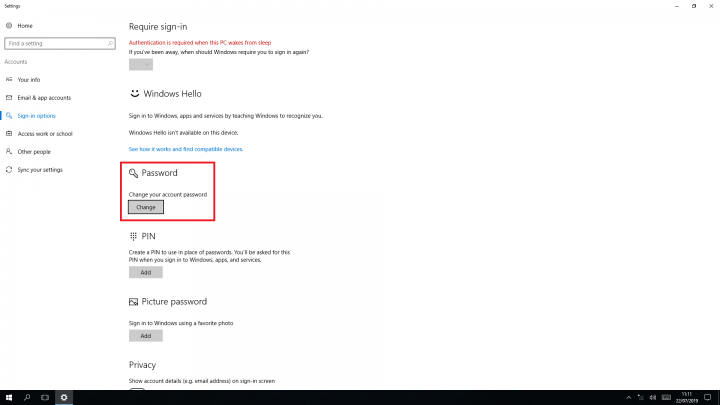
The window shown in the image above will now be displayed on-screen, click the 'Change' button, as highlighted, to continue. The pop-up shown in the image below will open.
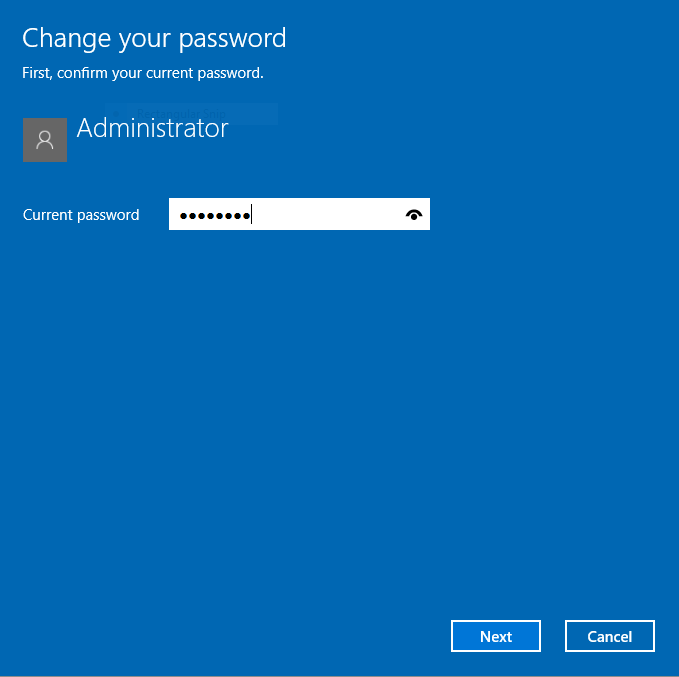
Enter the current default password, 'password', then click 'Next' to continue.
9.2.3 Step 3 - Enter the New Password
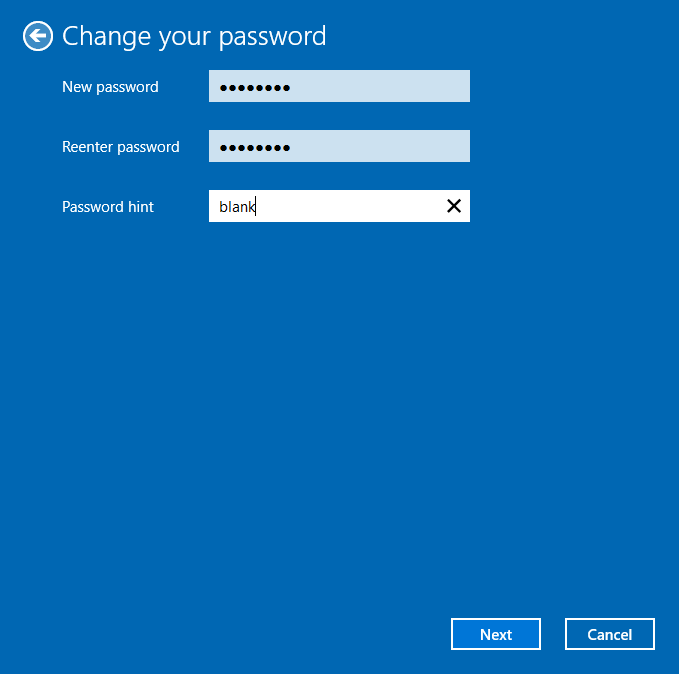
Next, enter the new password twice and an applicable password hint. Once ready, press 'Next' to continue to the confirmation screen shown in the image below.
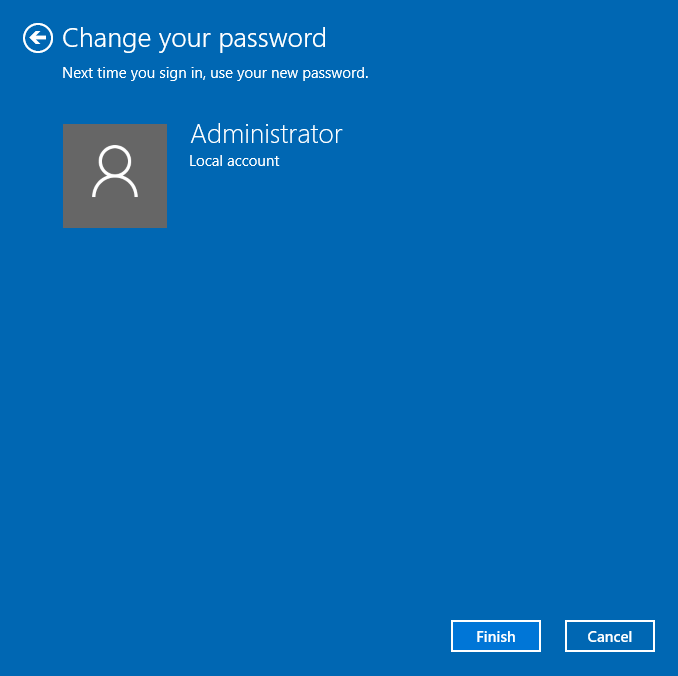
The password confirmation screen is now displayed, ensure you have safely recorded the new password in-line with your organisation's IT policies.
9.3 Navigation
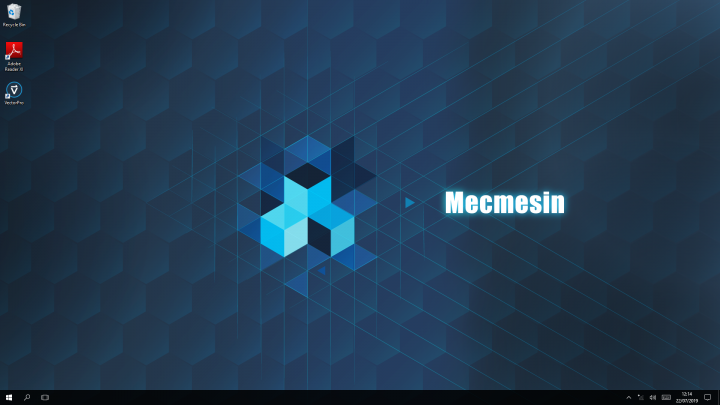
Upon logging-on, the desktop screen will be displayed, as seen in the image above. From here you can load VectorPro as well as carrying out typical tasks within Windows® 10.
To start VectorPro, or any software with a desktop shortcut, use the touchscreen display to double-click on the desktop icon, or click and hold on the icon and select 'open' from the on-screen menu.
9.3.1 Start Menu
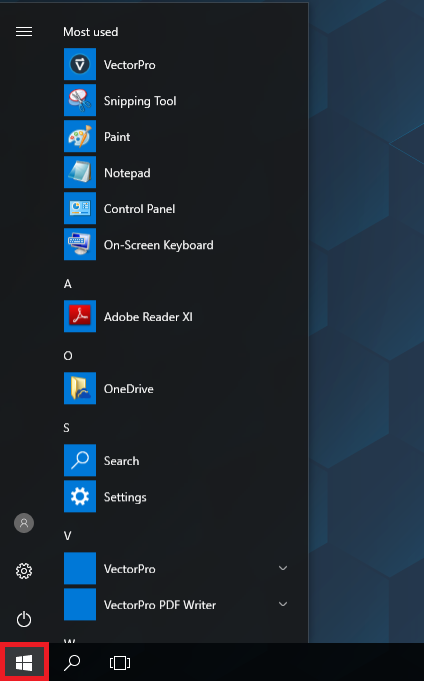
The Start menu can be opened by pressing the 'Start' button located at the bottom left of the taskbar. This allows access to a range of pre-installed Windows® apps as well as Windows® file explorer.
 |
To search for an app or file within Windows® using the Start menu, click the 'Search' button located to the right of the 'Start' button as shown in the right-hand image. |
9.3.2 Useful Shortcuts
Typing the following search terms into the Start menu search will display commonly used Windows® Apps as the first search result, allowing for quick and easy navigation:
- 'explorer' - Will display Windows® File Explorer as the top search result,
- 'iexplore' - Will display Internet Explorer as the top search result,
- 'devmgmt' - Will display device manager as the top search result,
- 'calc' - Will display the Windows® Calculator as the top search result.
9.3.3 On-screen Keyboard
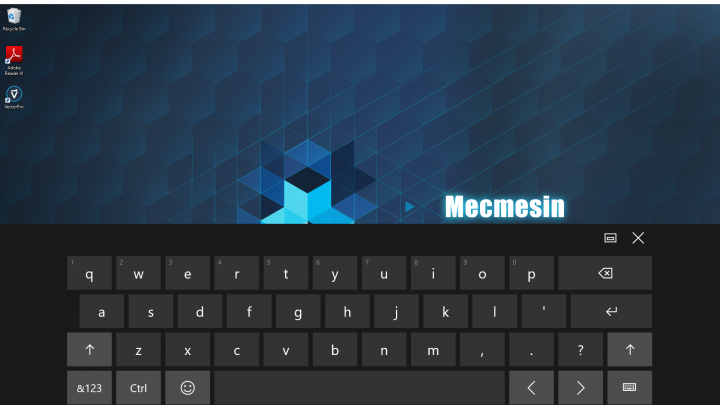
The on-screen keyboard is automatically opened when clicking on any text entry field within Windows® 10.
 |
If you need to open the keyboard away from a type-field, for example when using command shortcuts, such as 'Ctrl + C' to copy an item to the clipboard, click the 'On-screen Keyboard' button located in the bottom right of the taskbar, as shown in the right-hand image. |
9.3.4 How to 'Right-click'
 |
To 'Right-click' in Windows® 10 using a touchscreen, press and hold on the desired area until an indication square appears around your finger (as shown in the right-hand image) and then release. The Right-click menu will then be displayed on-screen. |
9.3.5 Switching off the Touchscreen Controller
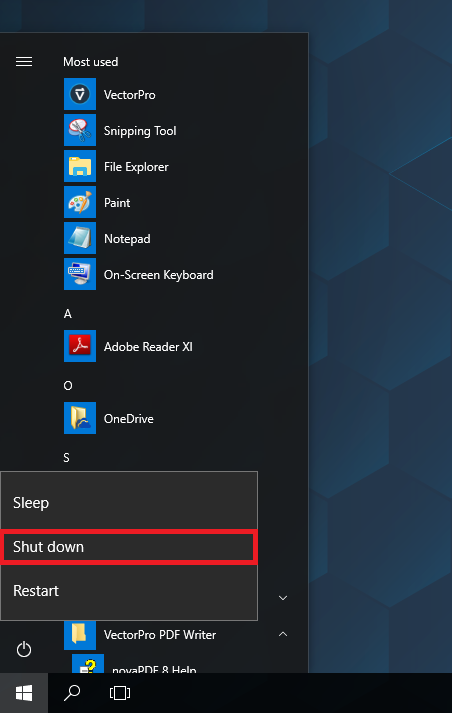
To shut down the Mecmesin Touchscreen Controller, close any open applications, click 'Start' then select the 'Power' button located to the left of the start menu and click 'Shut down'.
10 Touchscreen Controller Operation - VectorPro™
Mecmesin Touchscreen Controllers come with VectroPro pre-installed, to launch the software double-click the icon located on the desktop or use the Windows® start menu.
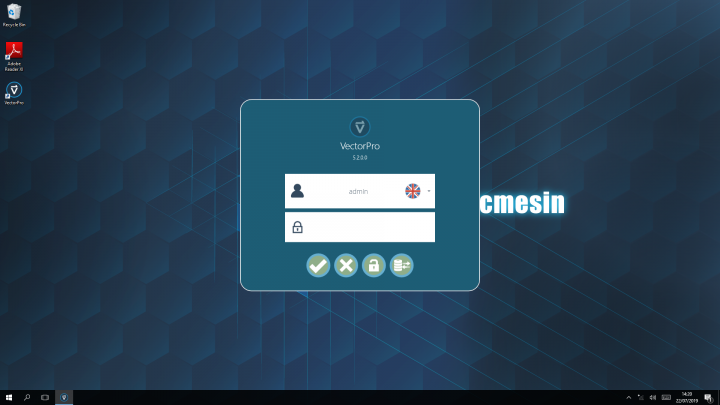
Once launched the login window shown above will be displayed on-screen. The default login details are as followed:
- User name: admin
- Password: admin
Enter the details and click the '✔' icon to continue, the software will open full screen and the default workspace will be displayed as shown below.
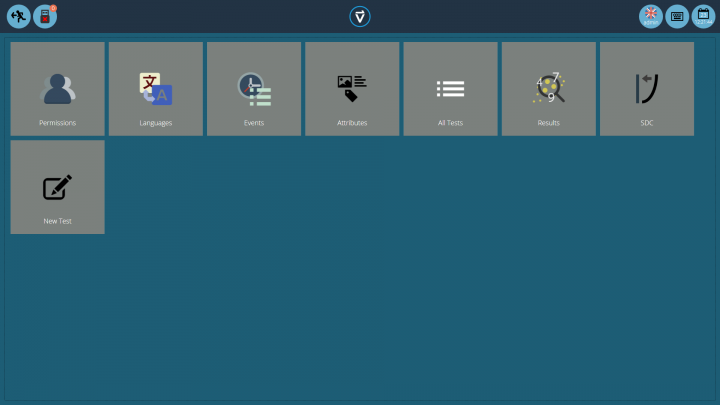
From the workspace screen, you have access to VectroPro's full range of features. For more information relating to the operation of VectorPro, please see the VectorPro Software User Manual.
10.1 Drag and Drop
The standard drag and drop functionality in VectorPro works seamlessly with Mecmesin Touchscreen Controllers. To move a compatible item in VectorPro using the touchscreen, press and hold on the selected item, then drag it across the screen and drop it where required.
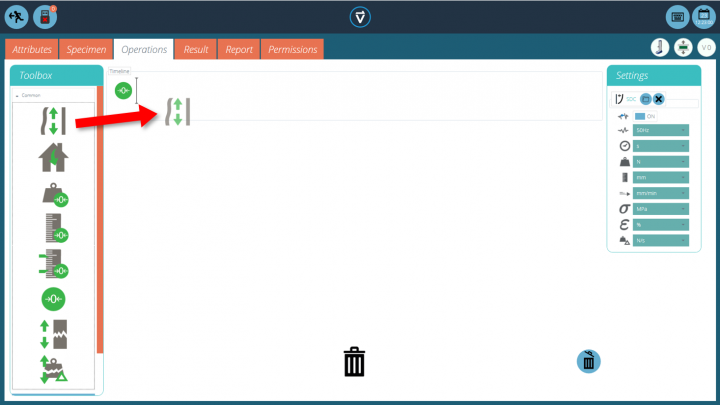
In the example above, the pre-load operation is being added to the test. This is achieved by dragging and dropping the operation into the test timeline, within the test edit window.
10.2 Results Navigation
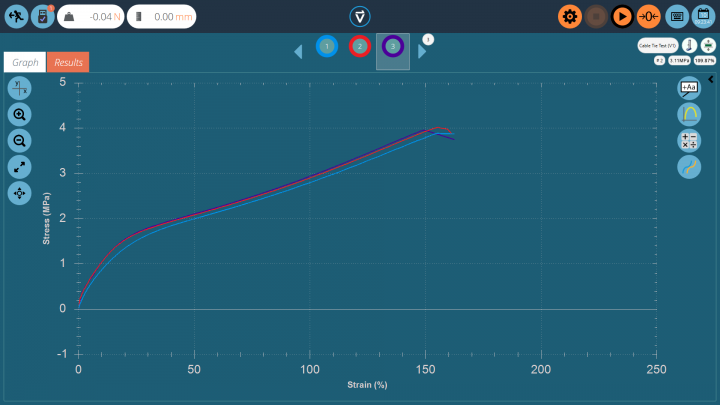
The touchscreen interface can also be used to easily navigate the results graphical display. 'Pinching' will zoom in or out on the graph depending on the motion, while swiping across the screen moves the area of results currently in focus.
11 Specification
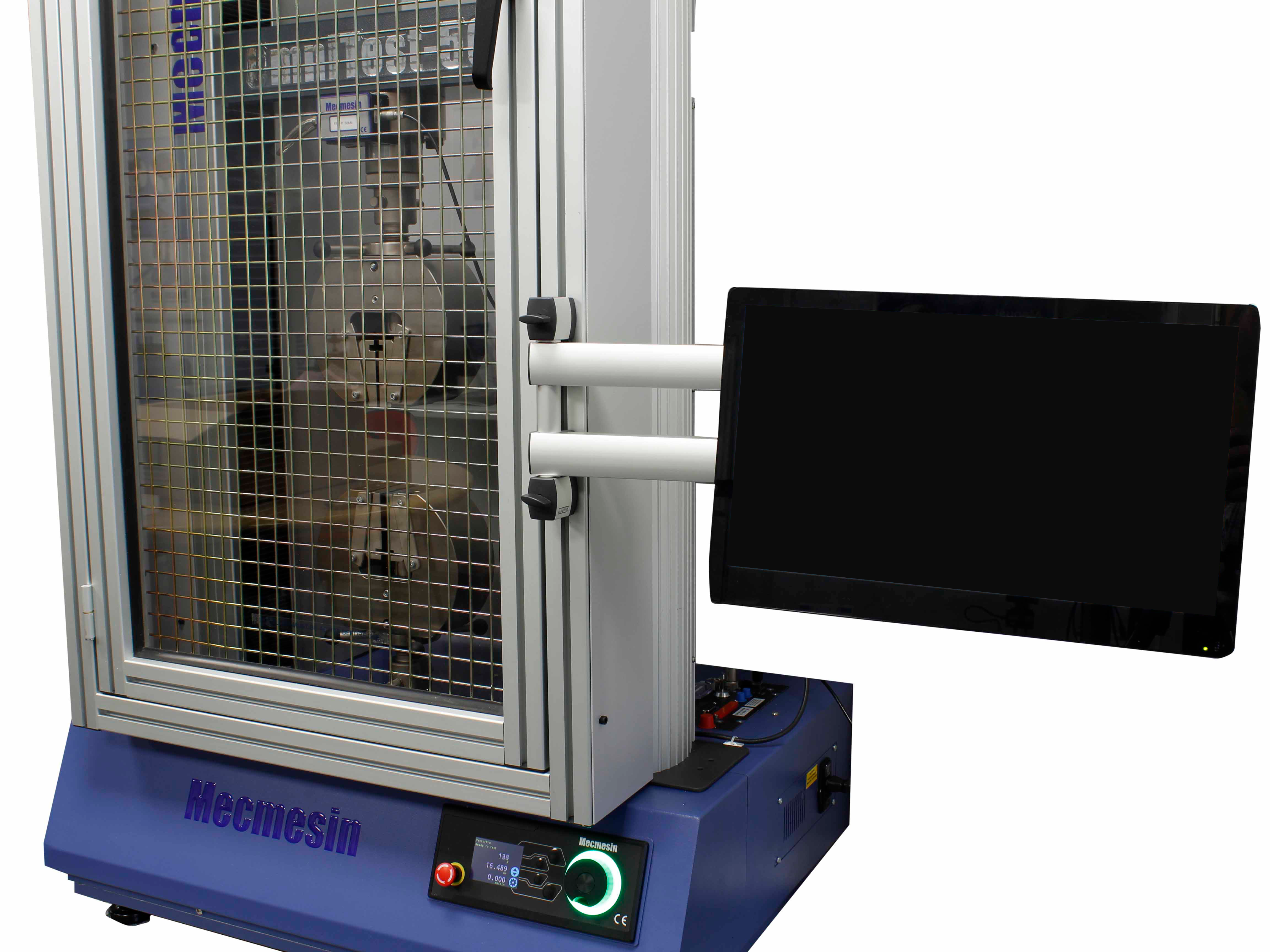
Operating System:
- Windows® 10 Enterprise 2016 LTSB
Processor:
- Intel i3-7100U 2.40 GHz
- 3 MB Cache
- Twin-Core
Memory:
- 4GB DDR4 2400 MHz
- 2 DDR4 SO-DIMM Sockets
Storage:
- 128 GB M.2 SSD
Display:
- 15.6" FHD PCAP Touchscreen
Graphics:
- Intel HD Graphics 620
Audio:
- Up to 7.1 Surround Via HDMI
Network:
- Integrated 10/100/1000 GbE
- Dual-Band 2.4 GHz/5 GHz 802.11ac Wireless
Interface:
- 4 USB 3.0 Ports
- 2 HDMI 2.0a
- 1 RJ-45 Ethernet
Touchscreen Display Specification:
- 15.6" (39.6 cm) LED Backlight Display
- 1920 x 1080
- 178o Viewing Angle
- 5 ms Response
- 1 HDMI Input
- 1 VGA Input
- 1 DVI-D Input
- 1 3.5 mm Audio Input
- 1 3.5 mm Audio Output
*Please note this is disabled by default, if required please contact your local Mecmesin Distributor for more information.
11.1 Additional Variants
Please note that there are two additional variants of the Touchscreen Controller, these feature an upgraded CPU and addition memory. The differing specs are displayed below, all remaining details are identical to the specification above.
11.1.1 Intel Core i5 Variant
Processor:
- Intel i5-7300U 2.60 GHz
- Turbo boost 3.50 GHz
- 3 MB Cache
- Twin-Core
Memory:
- 8GB DDR4 2400 MH
- 2 DDR4 SO-DIMM Sockets
Graphics:
- Intel HD Graphics 620
11.1.2 Intel Core i7 Variant
Processor:
- Intel i7-8650U 1.90 GHz
- Turbo boost 4.20 GHz
- 8 MB Cache
- Quad-Core
Memory:
- 8GB DDR4 2400 MHz
- 2 DDR4 SO-DIMM Sockets
Graphics:
- Intel UHD Graphics 620
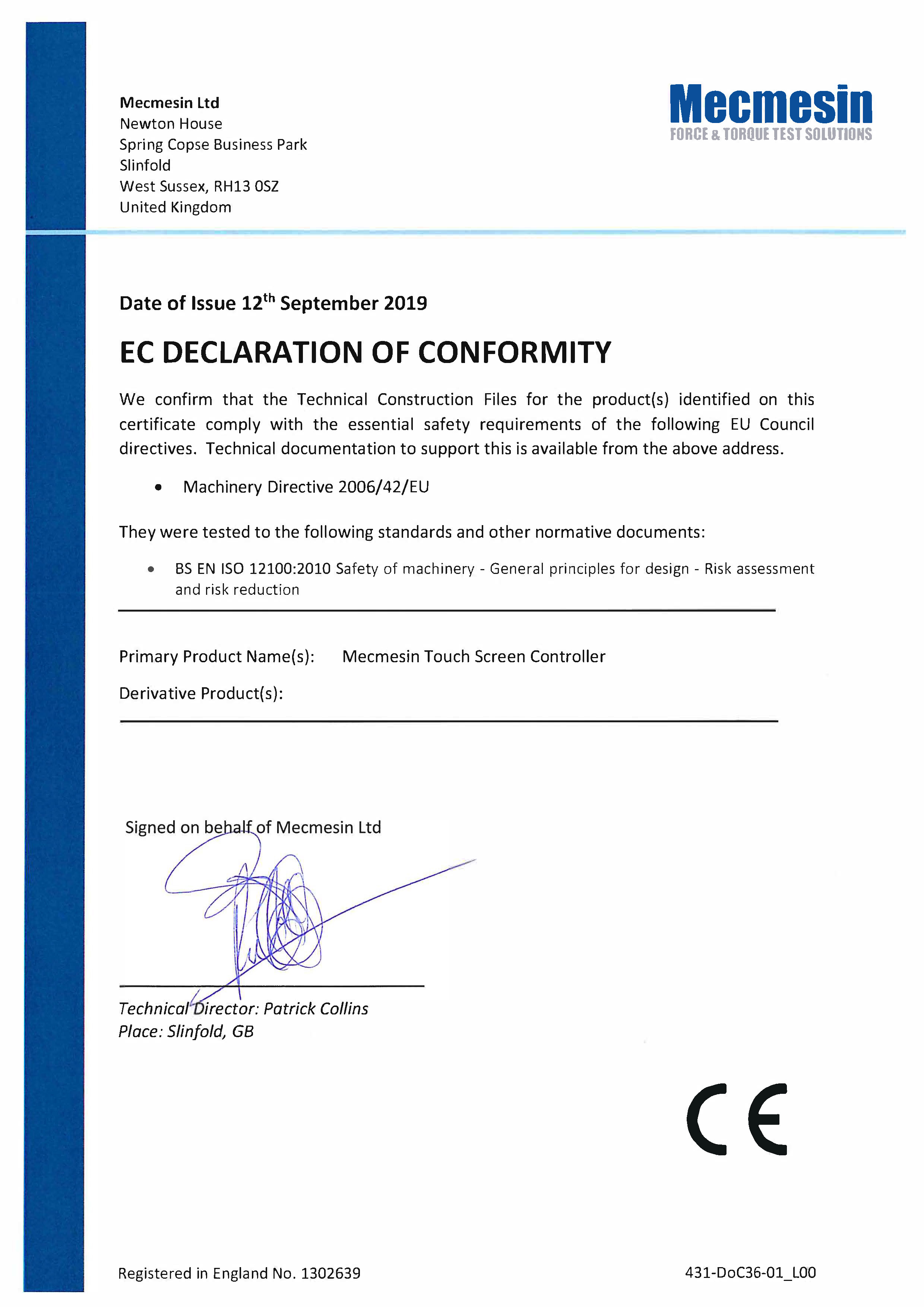
12 Document of Conformity
13 Additional
Microsoft® and Windows® are either registered trademarks or trademarks of the Microsoft Corporation in the United States and/or other countries.