Mecmesin Support
Published on Mecmesin Support (https://help.mecmesin.com)

Home > VectorPro Operating Manual - System Deflection Compensation MT Systems Only

Support / Software / VectorPro
Support / Software / VectorPro / VectorPro test software
Support / Product / OmniTest

Revision ID

12080
Manual
431-955

1 System Deflection Compensation (MT Systems Only)

Front Cover

Mecmesin Logo

431-955

February 2020

Top

2 Introduction

VectorPro™, VectorPro™ MT and VectorPro™ Lite are all registered trademarks of Mecmesin Ltd.

VectorPro is a dedicated software solution used for the programming and acquisition of data from a range of Mecmesin test stands and instruments.

Top

2.1 User Guidance

This user manual section covers System Deflection Compensation (SDC) within VectorPro only, for further guidance relating to other aspects of VectorPro please refer to one of the documents listed below.

​Please Note: It is recommended to work through all available user manuals, starting at the top of the list below and finishing at the bottom. Where necessary skip user manuals that do not apply to your test stand. For more information relating to test stand device groups please refer to the 'Device Groups' section located in the Introduction and Initial Setup User Manual. 
Important! Is it advised that this introductory document is read in full before continuing to other user manuals.

2.1.1 VectorPro™ User Manuals

Click one of the links below to navigate to the applicable user manual.  

 VectorPro Logo  

Introduction and Initial Setup

Covers the initial setup and installation of VectorPro, as well as the basics of the software functionality and user manuals.

Workspace and User Management

Runs through the functionality of the VectorPro Workspace, as well as admin tasks such as User Management and the Event Viewer.

VectorPro Default Workspace
 Materials Test Stands  

Designing a Test MT Version

A detailed guide to designing a test for VectorPro MT compliant test systems.

Designing a Test Lite Version

Covers designing a test for VectorPro Lite compliant test stands and devices

VectorPro Lite Compatible Test Stands
All Tests and Results Viewer

All Tests Viewer and Results Viewer

A guide explaining the functionality of the All Tests Viewer and Results Viewer.

Running a Test, Reporting and Exporting

How to run a test in VectorPro, as well as user guidance covering the Reporting and Exporting of data from VectorPro.

Example Report
SDC Tile

System Deflection Compensation MT Systems Only (Current Document)

Cover configuring System Deflection Compensation (SDC) within VectorPro. SDC is only available with MT compliant test systems.

Software License Agreement

View the latest version of the Mecmesin VectorPro Software License Agreement.

Software License Agreement
Table of Contents
  • 1 System Deflection Compensation (MT Systems Only)
  • 2 Introduction
    • 2.1 User Guidance
      • 2.1.1 VectorPro™ User Manuals
  • 3 SDC - Introduction
  • 4 SDC Viewer
  • 5 Creating a New SDC Profile
    • 5.1 SDC Profile Image
  • 6 Performing an SDC Test
    • 6.1 SDC Test Sequence
  • 7 SDC Test Information Panel 
  • 8 Saving and Loading SDC Results
  • 9 Further Information
Top

3 SDC - Introduction

SDC Tile

Under high loads, a very small element of measured displacement may be due to deflection within the system (test stand, loadcell and fixtures) rather than in the sample under test. The given displacement to create a force may, therefore, be slightly over-indicated.

This system deflection can be measured and compensated for. It can be important where deflection in the sample is similar in magnitude to that in the system, and where very accurate readings are required. SDC is primarily used in top-load testing but can be used in tensile tests (typically where extensometers aren’t being used).

Within VectorPro the test procedure consists of a preload stage, then a run to 90% of the SDC target to exercise the system (not plotted) and then the second run to 95% of the target load (plotted). This final run is saved and is used to determine the deflection compensation. SDC settings are saved in profiles, these can be created, viewed and deleted within the SDC viewer.

Top

4 SDC Viewer

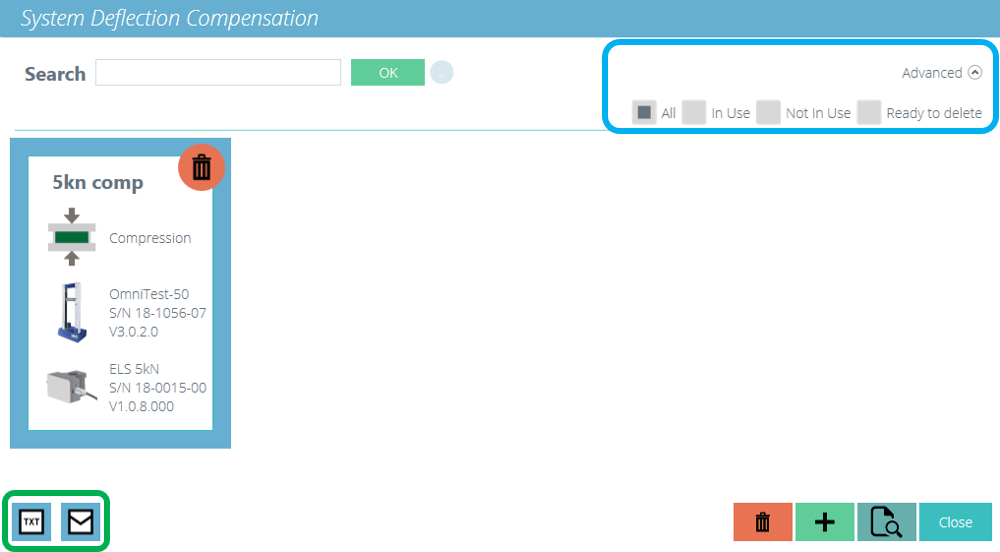
This is accessed by clicking on the SDC tile pictured at the top of this page. This window, allows search for specific SDC profiles and to filter what is currently shown on screen. (Highlighted in blue in the image below).

To export the SDC data as a text file or to send via an email, select the appropriate buttons shown. (Highlighted in green in the image below).
SDC Window


Top

5 Creating a New SDC Profile

New SDC Icon Clicking the ‘Plus’ icon opens the ‘New SDC’ window, simply select the current test stand and then the test mode (compression or tension), to continue.

SDC Test Window

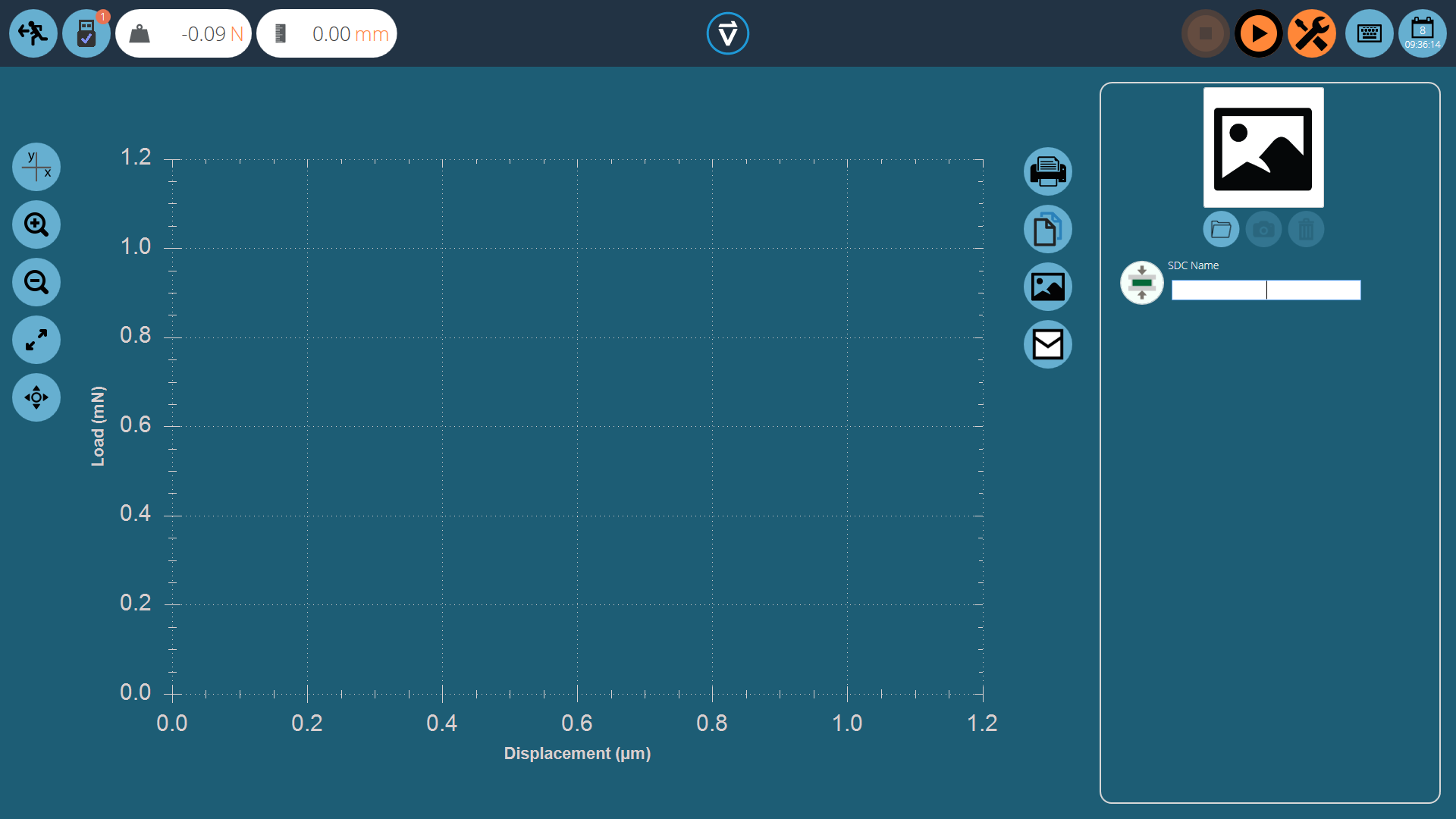
Within the SDC testing screen there are two main sections that are used to monitor and configure the SDC profile:

  • Graphic display: This will display a real-time plot of the final SDC run. The graph can be exported as an email file or printed.
  • SDC settings panel: The settings panel is located on the right-hand side of the screen, initial options are to name the test and load an image that will serve as the icon for this SDC profile.
Top

5.1 SDC Profile Image

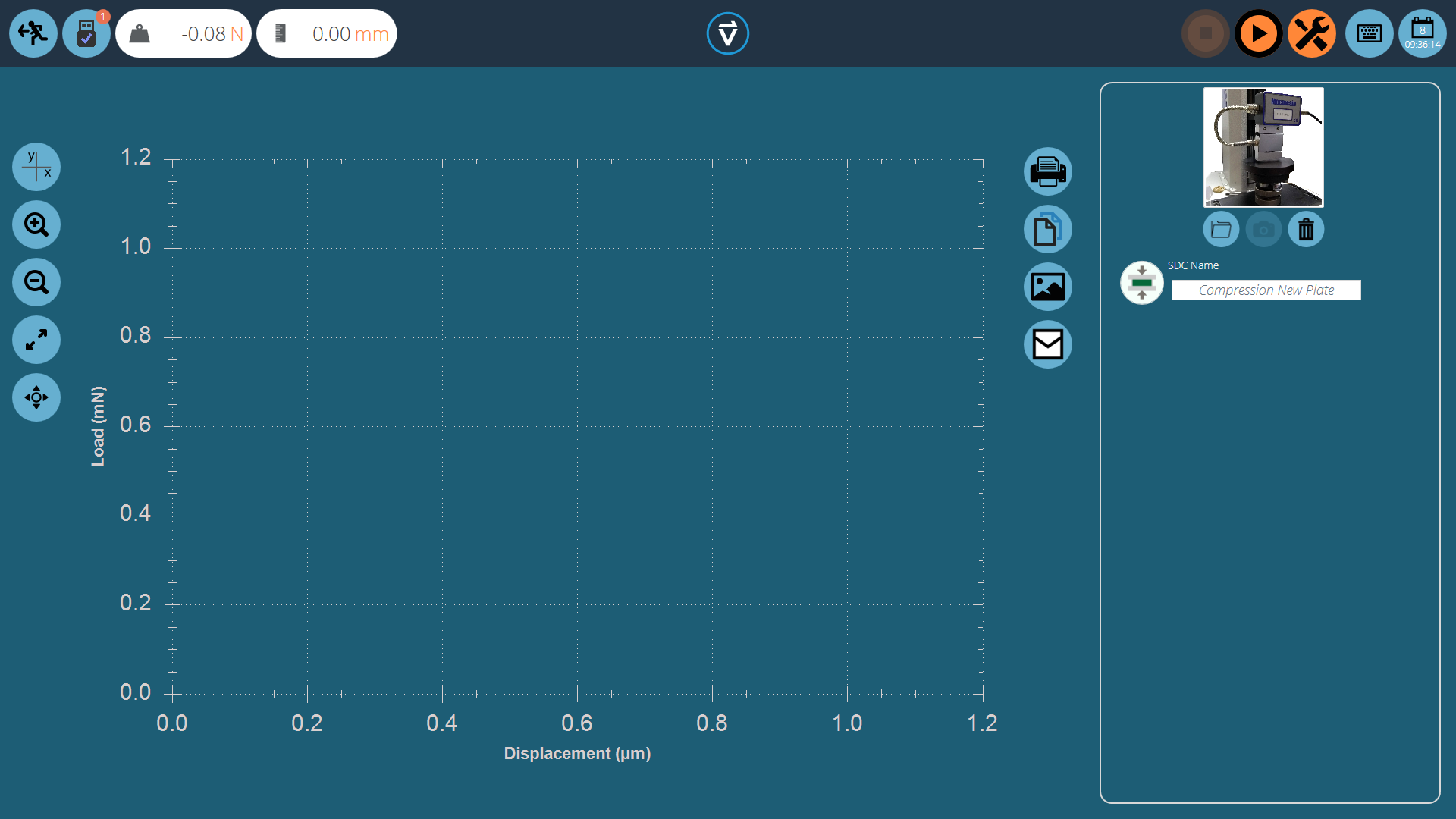
Custom images can be loaded to serve as the icon for the selected SDC profile, this enables easy visual recognition of grips and fixture setups through the icon of the profile. It is recommended that the chosen image clearly shows:

  • The load cell used,
  • The grip being used,
  • Any addition fixtures,
  • Test stand (if using multiple test stands).
Load Image Icon To load an image select the folder icon and browse to the desired image using the explorer window.  Users with webcams can press the camera icon to take an image. To clear a selected image press the trash icon.
Top

6 Performing an SDC Test

Running SDC Window

Attach the required stand accessories (grips, plate and probe) without a sample. For force stands requiring compensation corrections in the compression direction, place the compression plate or probe very close to the anvil.

For SDC tests in tension, use a component with a higher tensile strength in place of your specimen. It is important that the specimen exhibits minimal deflection during the SDC test.

Once a suitable image is loaded and named to your SDC profile, ensure the test system is ready to run.

Top

6.1 SDC Test Sequence

Set SDC Parameters

First, use the tare command, located in the top-right header bar, to zero the displacement and load values, then press the play command to continue.
SDC Progress Bar

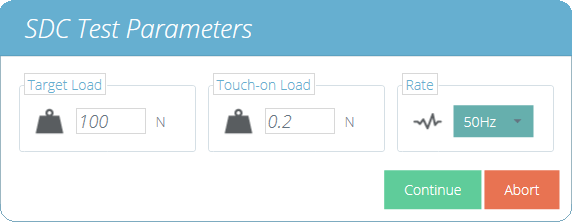
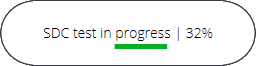
The test parameter window, pictured above, will appear on the screen. Enter a suitable Touch-on Load and the desired target load. The data rate for the test can also be configured using the drop-down box on the right-hand side of the window. Once ready press continue.
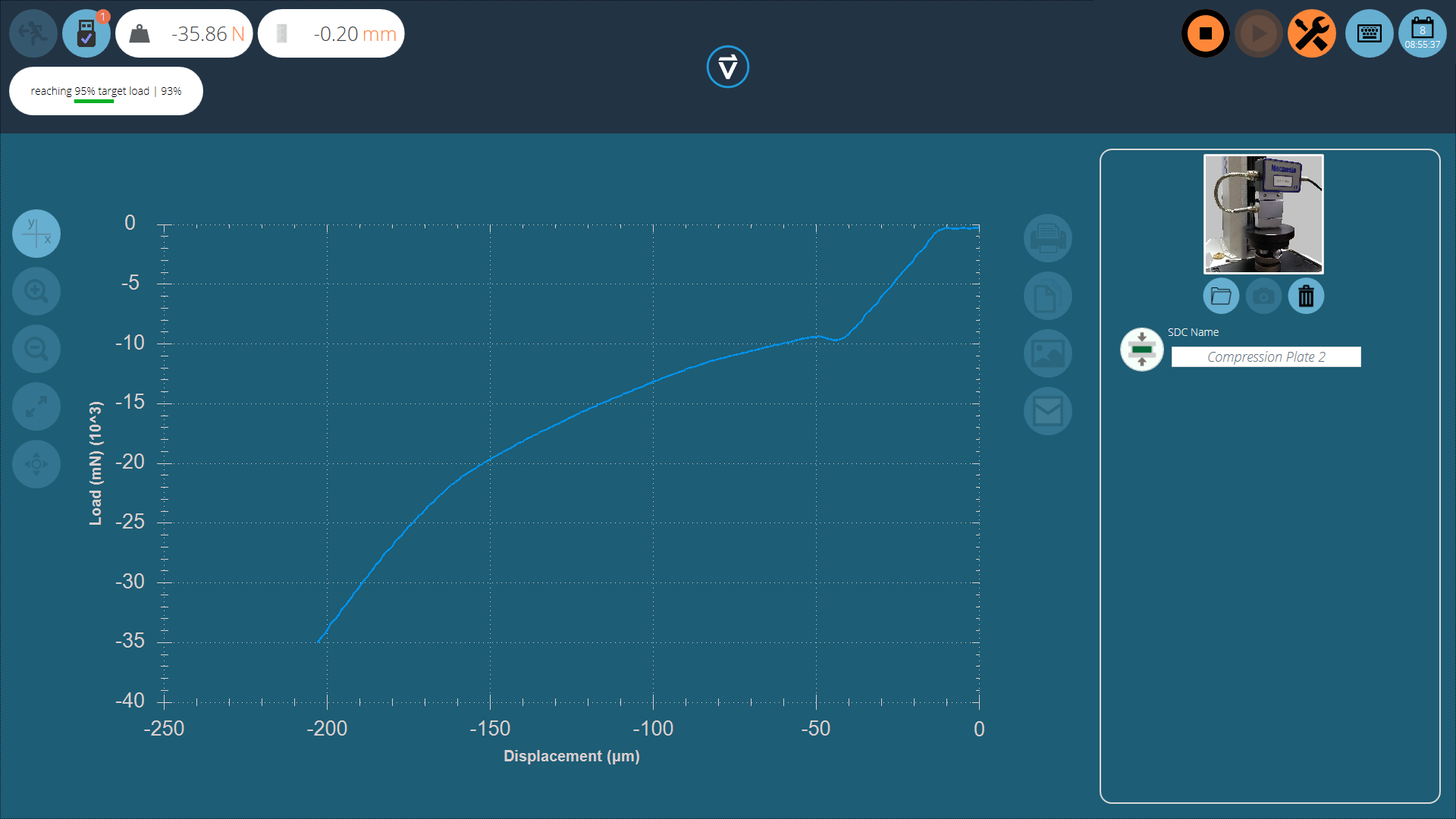
 

Running SDC

The test will now begin, the initial two stages (pre-load phase and 90% run) are not captured. Test status is indicated by the progress bar located in the upper left corner (pictured above).
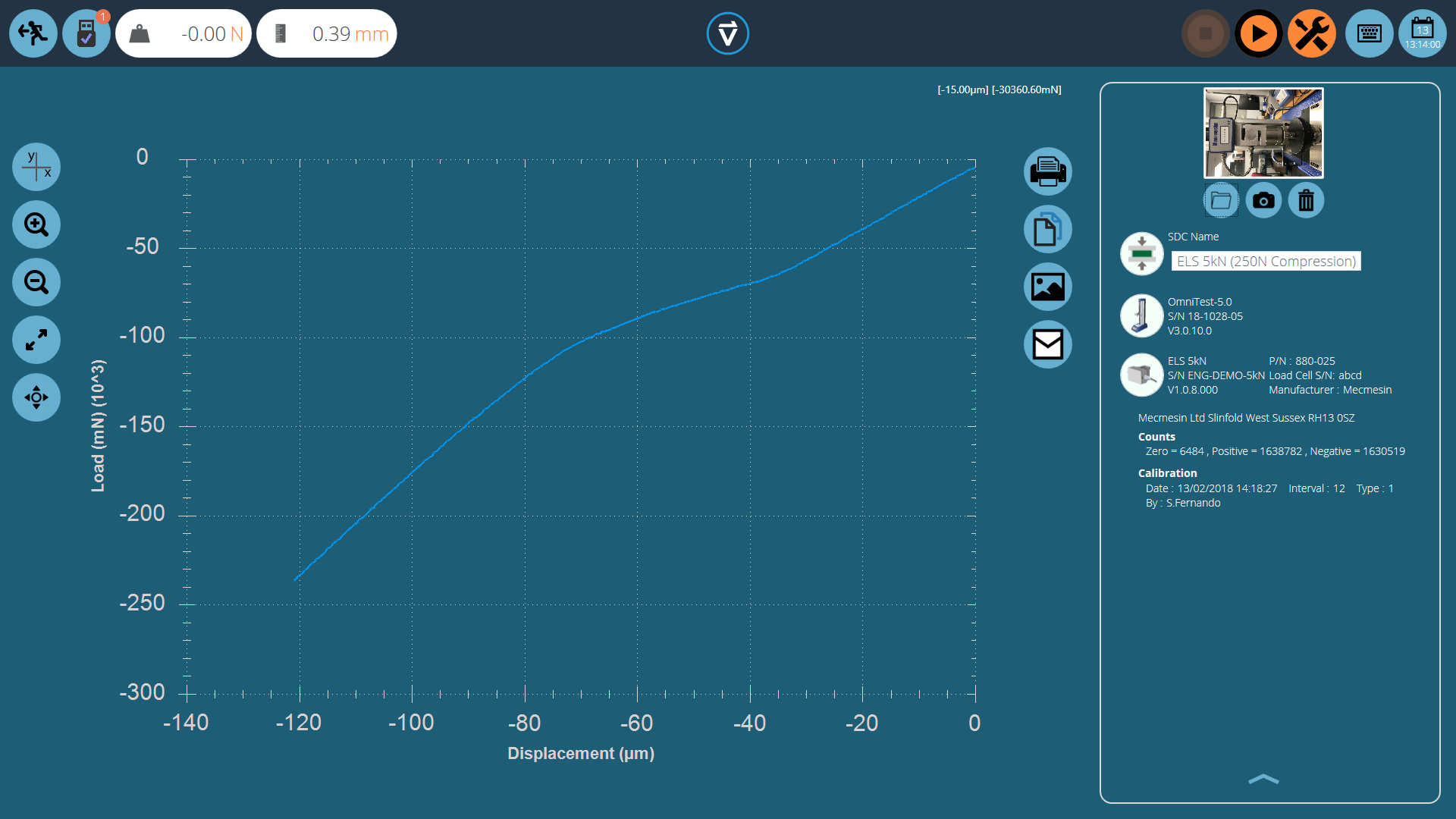
SDC Test Results

During the final 95% run the data will be captured, the image below shows a curve for an Omnitest-5 being run in compression. Values are captured in mN and µm.

Once the test is completed the graph will be shown in the main display area and the test details are stored in the right-hand plane.

Top

7 SDC Test Information Panel 

The right-hand plane stores the test results as well as test stand and ELS information. The diagram below explains what each of the sections represents.
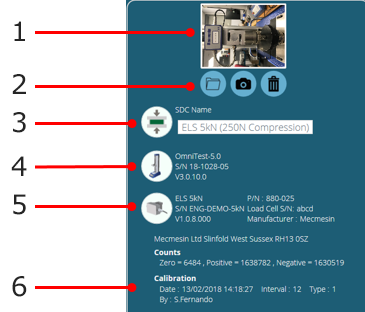
SDC Results Diagram

1 SDC profile image
2 Image controls
3 SDC direction icon
4 Test stand information: Stand type, serial number and firmware version
5 ELS information: Capacity, part number, serial number and firmware version
6 ELS calibration information. Displays the raw calibration information, date of calibration and who calibrated the device
Top

8 Saving and Loading SDC Results

Save SDC Results

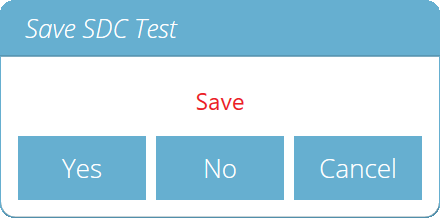
To save the SDC results simply press the back button located at the top of the screen and then click the ‘Yes’ button in the ‘Save SDC Test’ window.

SDC profiles are loaded for each individual test rather than as a global profile. SDC profiles can be loaded via the settings menu on the ‘Operations’ tab of the test designer screen.

Load SDC Profile Simply click the folder icon then load the selected profile. For more information relating to loading an SDC profile, please refer to the 'Test Acquisition Settings' section located in the Introduction and Initial Setup User Manual.
Top

9 Further Information

For more information relating to VectorPro, please return to the User Guidance section of this user manual and continue to the next applicable user manual.

 

  • Español
  • Français

Original instructions published in English language.
© PPT Group UK Ltd t/a Mecmesin

Print-optimised for PDF

Also available in...

  • Español
  • Français

Related questions

  • Can I get the dimensions of the anvil plate used on MultiTest and OmniTest stands ?

  • How to register for Vector Cloud

  • How to import and export tests and data using Vector Cloud (video)

  • Why is there a speed accuracy range quoted?

  • How do I use VectorPro with another user account on my PC/laptop?

  • Load more questions

Related docs

Release Note

  • VectorPro 11.3 - Software release video guide to new features

    Summary of new features in v11.3, including:

    • Enhanced reports: Export all peak/trough values
    • Enhanced reports: Attributes with fixed values in test added to results export (Excel)
    • Enhanced reports: Specify decimal places ('0' added) for results
    • Enhanced UI/UX: Import selected test/batch report template from VCS/bin test definition
    • Enhanced UI/UX: Import selected test/batch export settings template from VCS/bin test definition
    • Enhanced UI/UX: Copy crash report to clipboard
  • VectorPro 11.2 - Software release video guide to new features

    Summary of new features in v11.2, including:

    • Added support for RS232 COM results output
    • Added support for offline results data export/import (no internet connection required)
    • Enhanced UI/UX: Selecting All Test results
    • Enhanced UI/UX: Deleting Tests (inc. associated results)
  • VectorPro 11.1 - Software release video guide to new features

    Summary of new features in v11.1, including:

    • Display test stand and sensor serial and capacity in reports
    • Batch features: Remember last entry (for attribute values)
    • Pre-defined calculations: Young's Modulus
    • Added export options (opt. sample numbers, current sample only, etc)
  • VectorPro 10.1 to 11.0 - Software release video guide to new features

    Summary of technical features added from v10.1 to v11.0, including:

    • VectorPro installer for SqueezerPro
    • Added 4-Point Bend test type
    • New operations (Move to pre-defined home)
    • New languages (Ukrainian)
    • Auto-archive and restore test results
    • Share test definitions locally (offline) and by email (as attachment)
  • VectorPro 9.2 - Software release video guide to new features

    • New Auto collapse 'Operations' groups and 'Results' groups in test definition
    • New Dual Y-axis support in custom domain
    • Improved 'VectroPro unhandling exception' message for clarity
    • New 'Replay' and 'Replay & Record' sample feature
    • 'Break' settings moved from the 'Specimen' tab to the 'Operations' tab in the test definition
  • VectorPro 9.1 - Software release video guide to new features

    • Fullscreen login option
    • New conditional operations for the timeline:
      • 'Greater Than or Equal To'
      • 'Less Than or Equal To'
    • New toolbox options:
      • 'Clear Home' - clear a predefined home position
      • 'Move to Home' - move crosshead to predefined home position
      • 'Break Detection' toggle - prevent operations triggering any false break detection by firmware
    • Automatic conversion of unit values when units are changed in Results or Specimen tabs
    • Report template updates
  • VectorPro 8.3 - Software release video guide to new features

    • Extended product range support
    • New Report Template 12 with minimalistic design optimised for multiple graphs and simple tables
    • Settings such as the logo and the axis information in report templates are now saved with the test definition
    • New Loop/Cycle operation
    • New Digital I/O operations to support applications such as the automated carousel
      • Pause Message – digital input to continue a test
      • Pause Message – timer to continue a test
      • Operation to set a digital output
      • Operation to clear a digital output
    • New Abort operation
    • New Jump operation and a new Stop operation
      • Load Limit Jump
      • Displacement Limit Jump
      • Stress Limit Jump
      • Strain Limit Jump
      • Timer Jump
    • A notes attribute can now be linked dynamically to a pause operation’s message for greater detail and reporting
    • A more intuitive results view for test samples
    • Results filtering based on date, user and attributes
    • New samples Archive and Trash feature to optimise local storage
    • New sensors diagnostics tool for the test stand to streamline the production/manufacturing process
    • Copying an existing batch set to allow rapid batch testing
    • VCS Export now accepts multiple email addresses for faster sharing

Manual

  • HelixaPro Motorised Torque Tester Operating Manual

    HelixaPro and HelixaPro Touch motorised torque tester operating manual


  • VortexPro Motorised Torque Tester Operating Manual

    VortexPro and VortexPro Touch motorised torque tester operating manual


Certificate

  • EC Declaration of Conformity, OmniTest 0.5, 1 and 2.5

    • Français
    • Deutsch
  • Load more docs

+44 (0)1403 799979
info@mecmesin.com

PPT Group UK Ltd
t/a Mecmesin
Newton House
Spring Copse Business Park
Slinfold, West Sussex
RH13 0SZ
United Kingdom

PPT Group UK Ltd is a company registered in England and Wales, company number 414668.

Mecmesin is a PPT Group brand

  • About Mecmesin
  • Accessories
  • Careers
  • Certificates
  • Distributor Portal
  • Test types
  • Offices
  • Locations
  • Mecmesin.TV
  • Policies
  • Services
  • Support

BSI ISO 9001 / UKAS Quality Management logo

Mecmesin products are Made in Britain

Be our social media buddy and get real-time updates on Force and Torque news.

YouTube Twitter LinkedIn Facebook

Keep up on our always evolving product features and technology.

Subscribe to our newsletter.


Source URL (modified on 14/03/2022 - 16:53):https://help.mecmesin.com/docs/vectorpro-operating-manual-system-deflection-compensation-mt-systems-only